
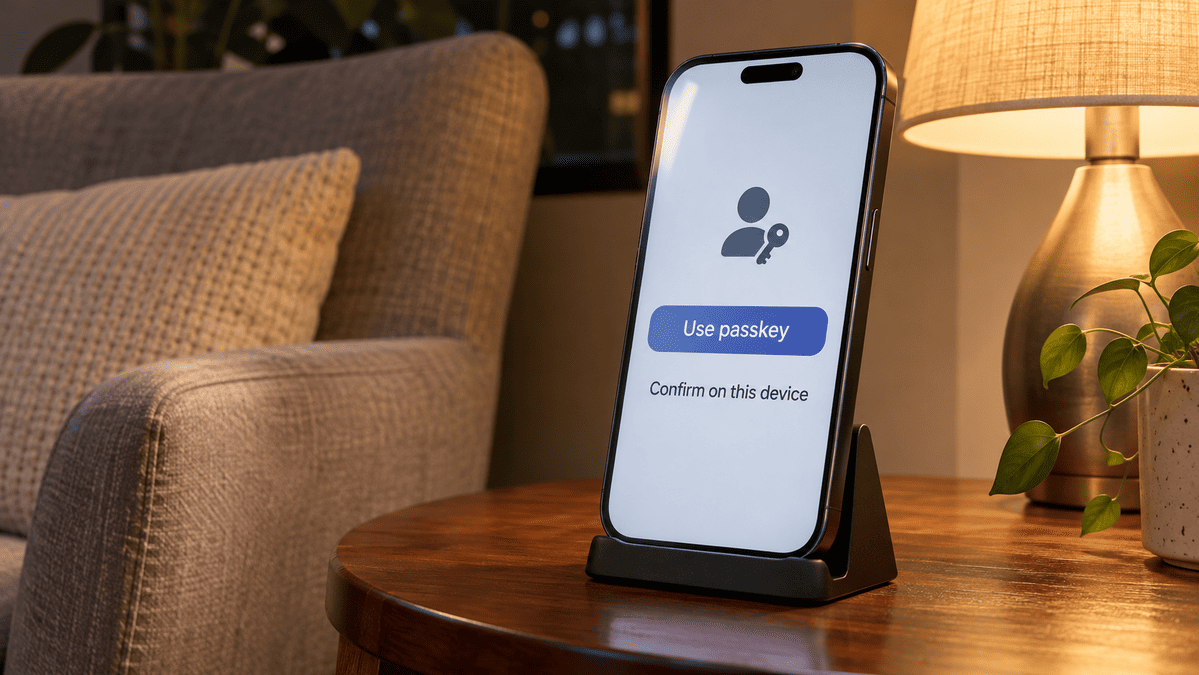
A sign-in screen offers to create a passkey, then asks you to use your fingerprint, face or device PIN. It can look as though you are giving the website a new kind of password. What actually happens is different: your device uses a digital credential to prove that you can access the account, without sending the website your fingerprint or face scan.
Passkeys let you sign in to supported websites and apps without typing an account password. They can make everyday logins simpler while offering stronger protection against fake sign-in pages. Understanding where they are stored, and how to recover access, helps you use them confidently.
Quick Overview
- A passkey is a digital sign-in credential associated with an account and a website or app.
- You usually authorise its use with your fingerprint, face, device PIN or another supported unlock method.
- Passkeys use a pair of cryptographic keys instead of a password you type.
- Some sync through a compatible password manager; others stay on one device or security key.
- Before switching, check how you would sign in if your usual device became unavailable.
What happens when you use a passkey?
Creating a passkey establishes two mathematically related keys:
| Key | Where it belongs | What it does |
|---|---|---|
| Public key | The website or service stores it with your account | Checks proof supplied during sign-in |
| Private key | Your device or passkey manager protects it | Produces the proof needed to sign in |
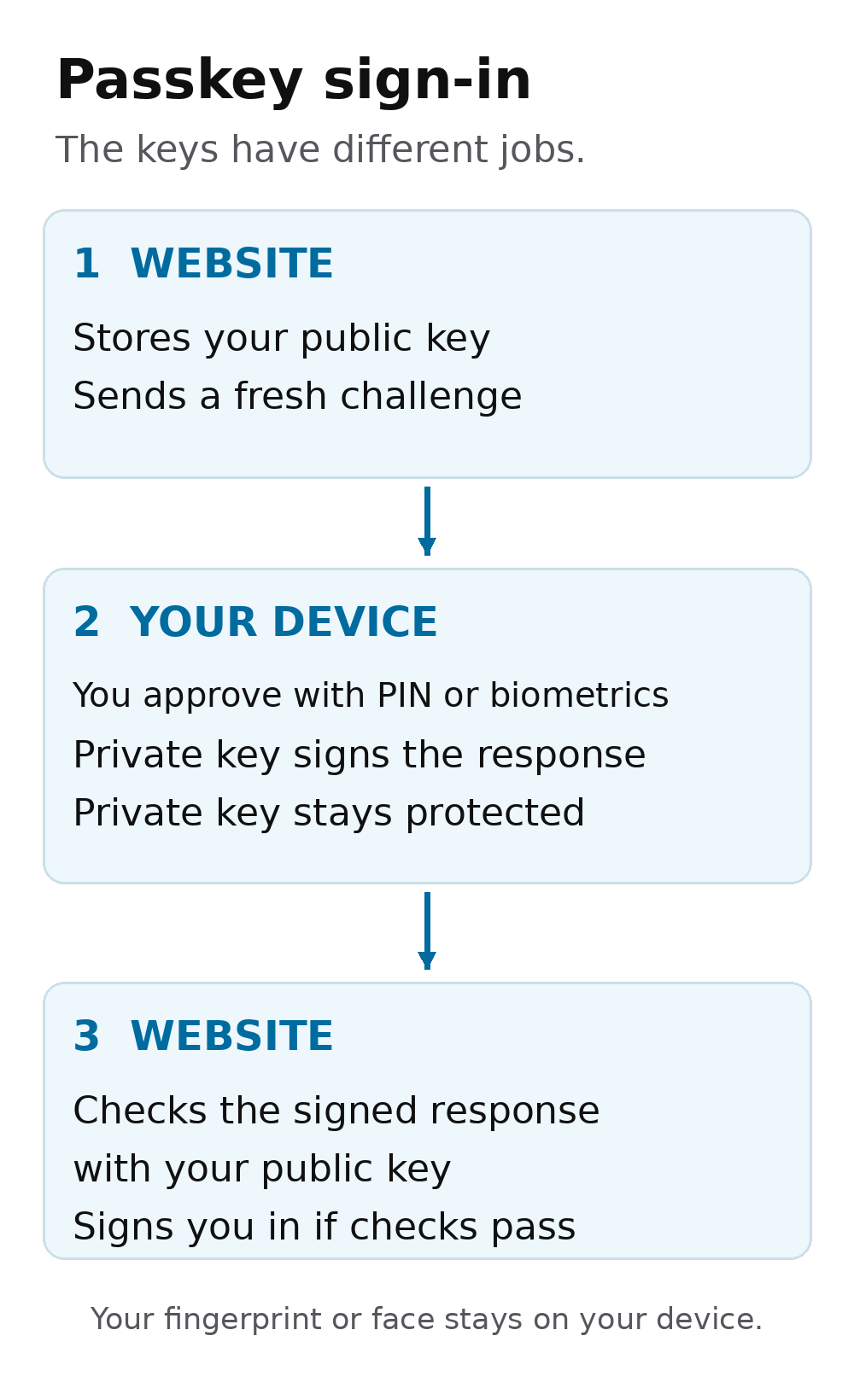
The public key is not a secret and cannot, by itself, be used to sign in as you. The website does not receive your private key.
When you return, the service sends a fresh digital challenge. After you approve the sign-in, your device uses the private key to produce a response. The service checks that response using the public key.
You do not need to manage these calculations. To you, the process may simply look like selecting an account and unlocking your device. FIDO Alliance’s passkey security explanation describes the underlying challenge-and-response approach.
Is your fingerprint the passkey?
No. Your fingerprint or face scan authorises your device to use the passkey. It is separate from the cryptographic credential that proves your identity to the service.
The biometric check happens locally. The website receives confirmation of successful authentication, rather than a copy of your fingerprint or face.
Biometrics are also optional in many passkey systems. A supported device PIN, passcode or security-key PIN can provide the local verification instead. This matters if you prefer not to use facial recognition or your fingerprint sensor is unavailable.
Think of the distinction this way: unlocking your device gives it permission to use the credential. The credential then handles the account sign-in.
How are passkeys different from passwords and verification codes?
Passwords, verification codes and passkeys all help control account access, but they work differently.
| Method | What you do | An important distinction |
|---|---|---|
| Password | Type a secret, or let a password manager fill it in | A convincing fake page may trick someone into entering it |
| SMS or authenticator code | Enter a temporary code, usually after a password | A scammer may ask you to reveal or enter that code |
| Passkey | Approve sign-in through your device or security key | The system checks which website or app is requesting authentication |
A passkey is associated with the legitimate service. A lookalike website cannot simply request and use its passkey as though it were the real site.
Passkeys can also provide multi-factor authentication when they combine possession of the credential with verification through a PIN or biometric check. The service’s configuration determines the requirements, so follow its instructions rather than assuming every account behaves identically.
Australian Government guidance on using passkeys explains that they can reduce password guessing and fake-login risks, while avoiding the need to type passwords or one-time codes during supported sign-ins.
Where are passkeys stored?
There are two main arrangements, and the difference matters when changing devices.
Synced passkeys are made available across supported devices through a passkey provider or compatible password manager. The provider protects the synchronised credentials using encryption.
For example, Apple uses iCloud Keychain to sync passkeys across approved devices. Apple states that this data uses end-to-end encryption, meaning Apple cannot read the protected keychain contents. Recovery still depends on meeting the provider’s requirements.
Device-bound passkeys stay on a particular device or hardware security key. They do not automatically become available on a replacement phone or computer.
Both approaches can be useful. Synced credentials offer convenience across compatible devices; a device-bound credential gives you a specific physical item to manage. FIDO distinguishes these as separate passkey types.
Before accepting a creation prompt, read where the passkey will be saved. That choice helps determine where you can use it later.
How to set up your first passkey
Start with one account you use regularly, on a personal device you control.
- Open the official website or app directly. Avoid beginning from an unexpected message.
- Check the account’s security or sign-in settings. Look for an option such as “Create a passkey”.
- Read the storage prompt. Confirm which device or password manager will save it.
- Approve creation. Follow the device’s fingerprint, face or PIN prompt.
- Test a sign-in. Check that you understand which account and credential you are selecting.
The wording varies by service, browser and device. Google’s documentation illustrates this general registration process, but a particular website may arrange its screens differently.
Avoid saving a personal passkey on a shared computer. Google specifically warns that someone who can unlock a device containing your Google Account passkey may be able to access that account, even after you have signed out.
Can you use a phone’s passkey on a computer?
Yes, where the service and devices support it.
For example, Google supports a process in which a computer displays a QR code, you scan it with your phone, and then approve the sign-in on the phone. Bluetooth needs to be enabled for this flow.
This lets the phone authenticate the sign-in without requiring its passkey to be saved on the computer. Only approve a request you initiated and understand.
What happens if you lose your phone?
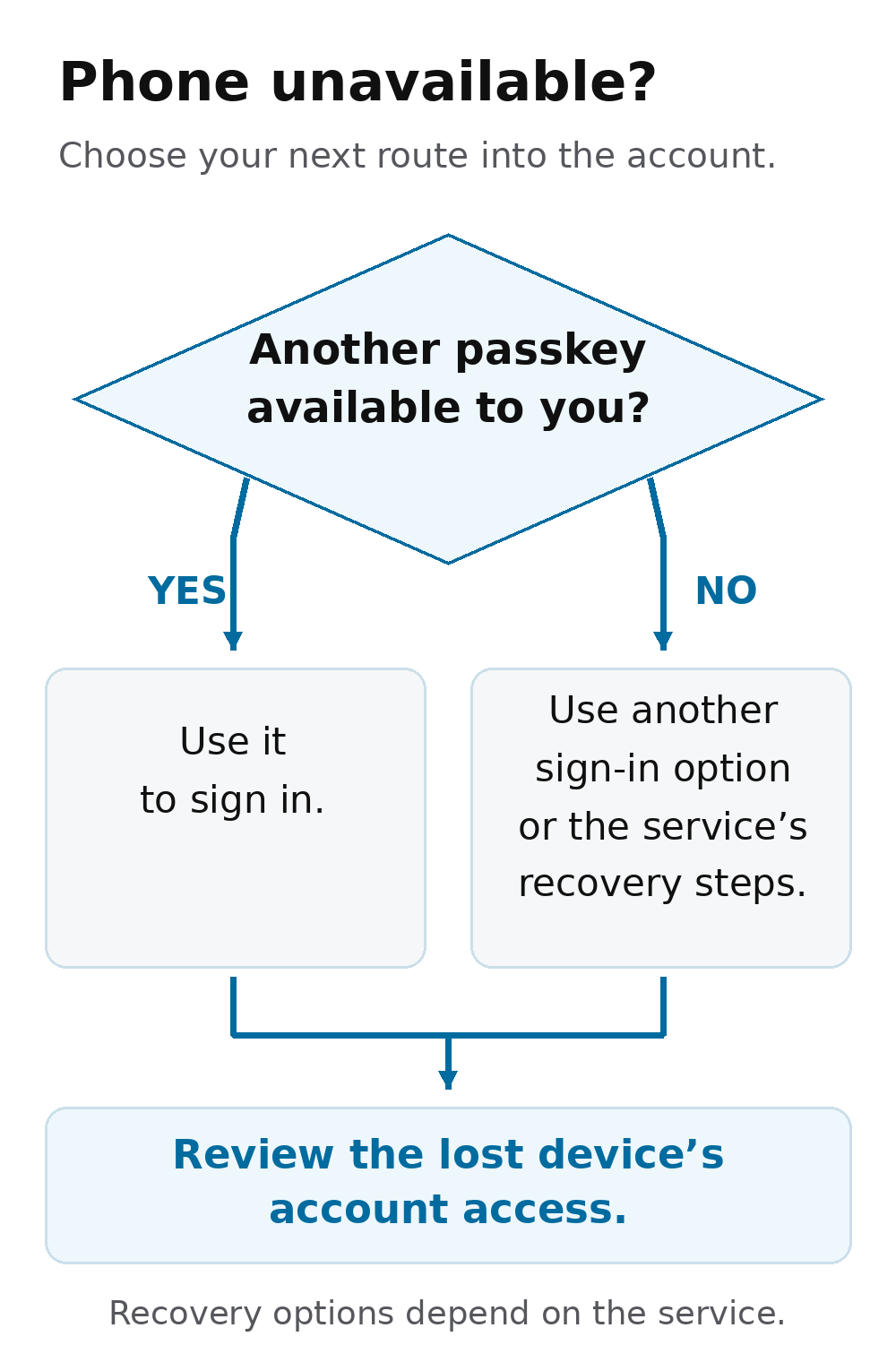
Losing a phone does not automatically mean losing every account. Your options depend on where the passkeys were stored and what recovery methods you arranged.
A synced passkey may remain available on another approved device or become accessible through the provider’s recovery process. Apple, for example, documents recovery protections for iCloud Keychain. A passkey stored only on a lost device will require another route into the account.
Before relying on passkeys, check:
- Whether another trusted device can access them.
- Whether the account supports an additional passkey or security key.
- Which recovery methods the service provides.
- Whether your recovery contact details are current.
If a device is lost or stolen, review its account access promptly. Google’s passkey help page explains how to remove passkeys associated with a missing device. Other services have their own procedures.
Do passkeys make an account completely safe?
Passkeys strengthen sign-in security, but they do not make every online activity safe. A convincing scam can still ask you to transfer money, install software or disclose personal information without stealing a passkey.
Keep checking unexpected requests, even when your accounts use stronger authentication. Topica’s guide to spotting, avoiding and reporting scams covers warning signs beyond the login screen.
Also check what happens to an existing password after you add a passkey. Some services retain it as another sign-in option. Google, for example, allows password sign-in after passkey creation, so adding a passkey does not automatically remove every older access route.
A practical way to begin
Try a passkey on one supported account, confirm where it is saved, and test how you would regain access without your usual device. This gives you a chance to understand the prompts before changing several accounts.
The everyday benefit is straightforward: fewer passwords to type and stronger protection against fake sign-in pages. The useful habit to keep alongside that convenience is knowing where your credentials live and how recovery works. For accounts that do not support passkeys, continue using unique, strong passwords and the strongest suitable multi-factor authentication available.